

How to Ask Leo to Optimize an Existing Campaign
Leo doesn’t just create campaigns — it analyzes what’s running and tells you exactly what to fix. Instead of digging through ad managers trying to figure out why your CPA is too high, you can ask Leo to look at a campaign, diagnose the issues, and propose specific changes. This guide covers how to use Leo’s optimization workflow.
Step 1: Ask Leo to Analyze a Campaign
Open the chat panel and tell Leo what you want to improve. You can be specific or general:
- “Why is my CPA so high on Leo Trial Acquisition?”
- “How can I improve ROAS on my Meta campaigns?”
- “Which ads are underperforming?”
- “Reduce my cost per lead on this campaign”
Leo will pull performance data across your ads and break it down. Here’s an example — Leo analyzed a campaign and produced an ad-level performance breakdown showing CTR, CPC, Cost per Landing Page View, and spend for each ad, segmented by audience:
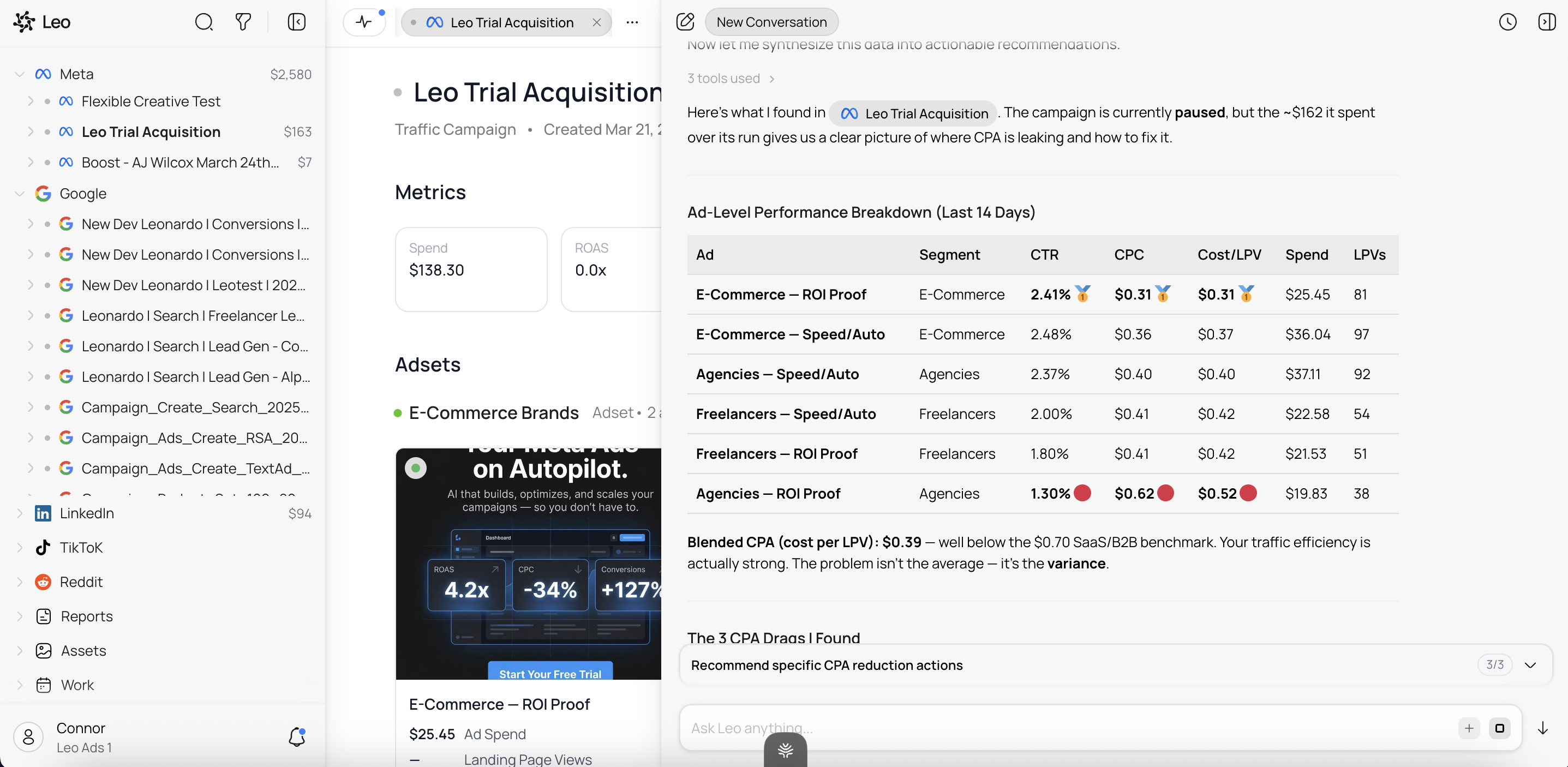
Leo doesn’t just show you numbers — it interprets them. In this example, Leo identified that the blended CPA was below the SaaS B2B benchmark, but flagged the variance between ads as the real problem. Some ads were performing well while others were dragging the average up. That’s the kind of insight that’s hard to spot manually across dozens of ads.
Step 2: Review Leo’s Recommendations
After analyzing the data, Leo proposes specific actions. These aren’t vague suggestions — they’re concrete steps with expected impact:
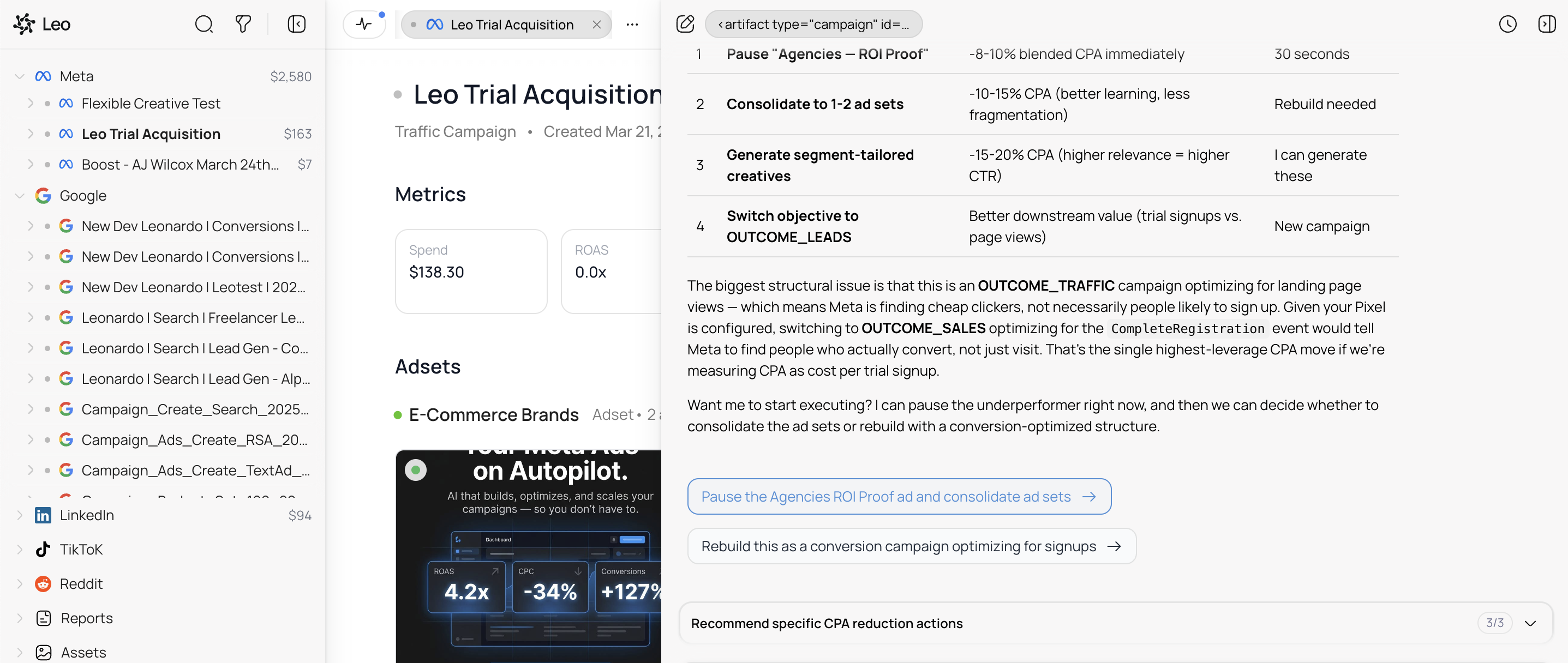
In this example, Leo recommended four actions:
- Pause the underperforming ad — immediately reduce blended CPA by an estimated 6-10%
- Consolidate ad sets — reduce fragmentation for better CPA and learning
- Generate segment-tailored creatives — improve relevance and CTR for specific audiences
- Switch the campaign objective — move from traffic to conversion optimization for better downstream value
Each recommendation includes the expected impact so you can judge whether it’s worth doing.
Step 3: Choose What to Execute
Leo gives you clickable options to act on its recommendations. You might see buttons like:
- “Pause the Agencies ROI Proof ad and consolidate ad sets”
- “Rebuild this as a conversion campaign optimizing for signups”
- “Recommend specific CPA reduction actions”
Click the one you want, and Leo will either execute immediately (for simple changes like pausing an ad) or walk you through the details first (for structural changes like rebuilding a campaign). You can also ask follow-up questions before committing — “what happens if I just pause the underperformer and leave everything else?”
Nothing changes on your ad platform until you give the go-ahead.
What Can Leo Optimize?
Leo can work with any aspect of your campaigns:
- Budget — shift spend between campaigns, ad sets, or platforms based on performance
- Targeting — narrow or broaden audiences, add or remove interests, adjust demographics
- Bidding — change bid strategies or adjust bid amounts
- Creative — identify which ads to pause, which to scale, and generate new variations
- Structure — consolidate fragmented ad sets, split high-spend ad sets, or restructure campaigns entirely
- Objectives — recommend switching campaign objectives when the current one isn’t aligned with your goals
Tips
Start with a question, not a command. Asking “why is my CPA so high?” gives Leo room to diagnose the root cause. Jumping straight to “lower my bids” might fix a symptom but miss the real problem.
Let Leo see the full picture. Leo works best when it can compare performance across your entire account. If you only have one platform connected, connect the others — Leo’s cross-platform view often reveals that budget is better spent elsewhere.
Don’t optimize too frequently. Ad platforms need time to learn and stabilize after changes. Leo knows this and will tell you if a campaign needs more data before it can make meaningful recommendations. Trust the process.
Review the reasoning, not just the action. Leo explains why it’s recommending each change. Understanding the reasoning helps you make better decisions about which recommendations to accept and builds your own intuition over time.