

How to Invite Team Members and Manage Permissions in Leo
Leo supports multiple users per workspace, with granular control over who can do what on each connected platform. You can invite team members, assign them a role, and toggle write access on a per-platform basis. This guide covers how to manage your team in Leo.
Viewing Your Team
Go to Settings → Users to see everyone in your workspace. The Users page shows a table with:
- User Name and email
- Role — Admin or Staff
- Platform Access — per-platform columns showing Read Only or Read & Write for each connected platform (Meta, Google Ads, LinkedIn, TikTok, Reddit)
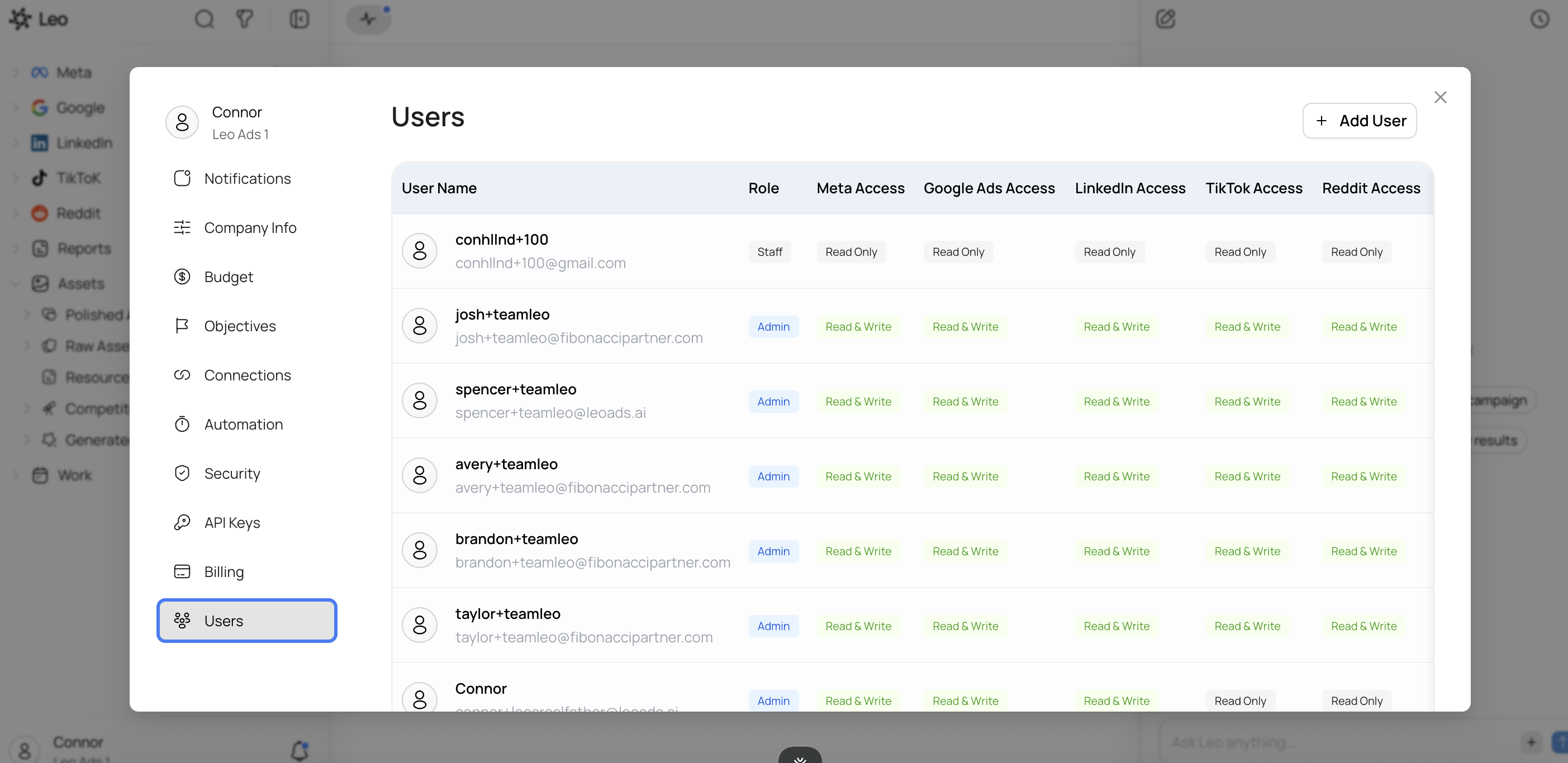
This gives you a quick overview of who has access to what. If you see someone with more access than they need, you can adjust their permissions from here.
How to Invite a New User
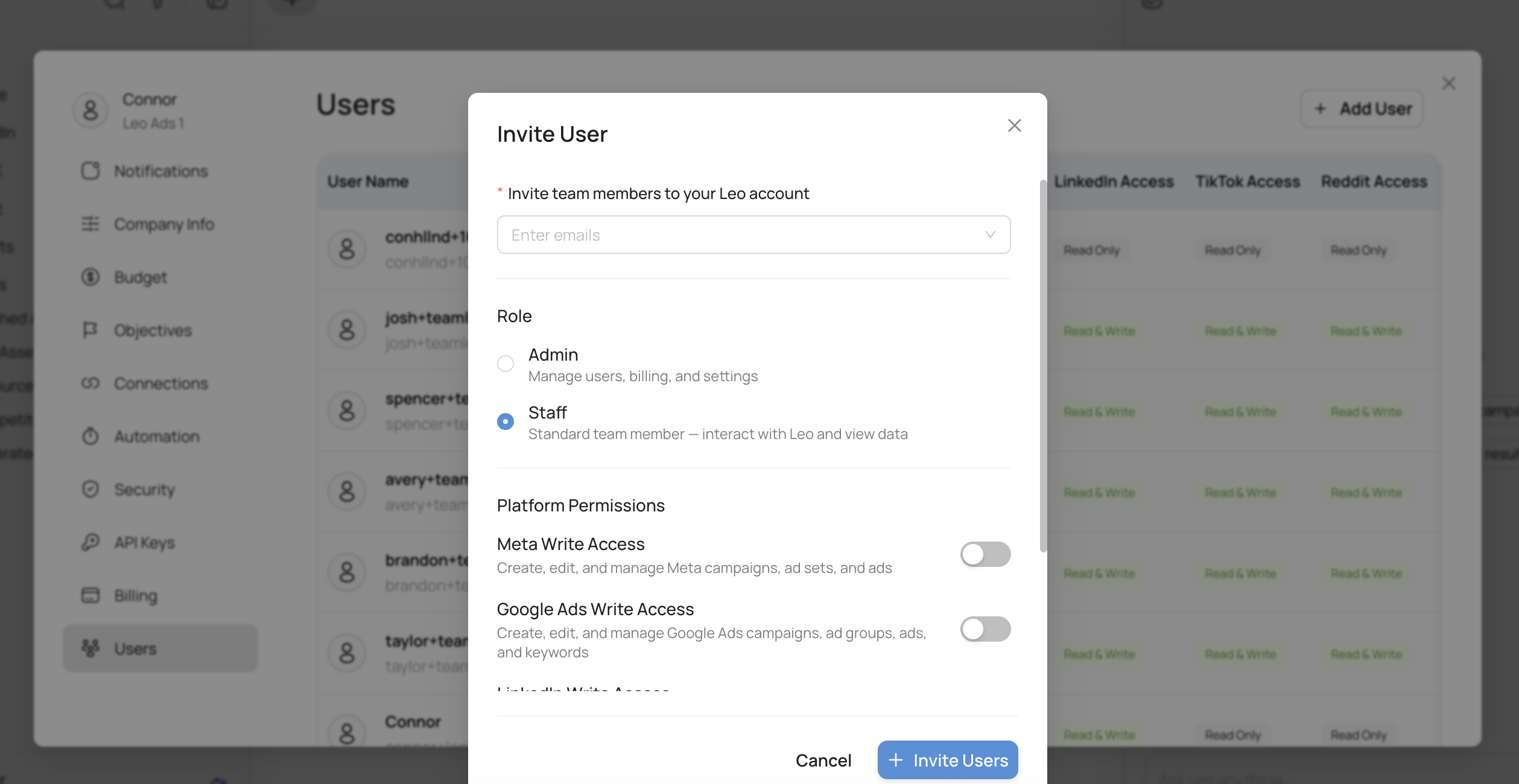
Click the + Add User button in the top-right corner of the Users page. The Invite User modal opens with three things to configure:
1. Enter Their Email
Type the email address of the person you want to invite. They’ll receive an invitation to join your Leo workspace.
2. Choose a Role
Leo has two roles:
- Admin — Can manage users, billing, and settings. Admins have full control over the workspace.
- Staff — Standard team member. Can interact with Leo and view data, but can’t manage other users or billing.
3. Set Platform Permissions
This is where Leo’s permissions get granular. For each connected platform, you can toggle Write Access on or off:
- Write Access ON — The user can create, edit, and manage campaigns, ad sets, and ads on that platform through Leo.
- Write Access OFF — The user can view campaigns and data on that platform, but can’t make changes. They’ll have Read Only access.
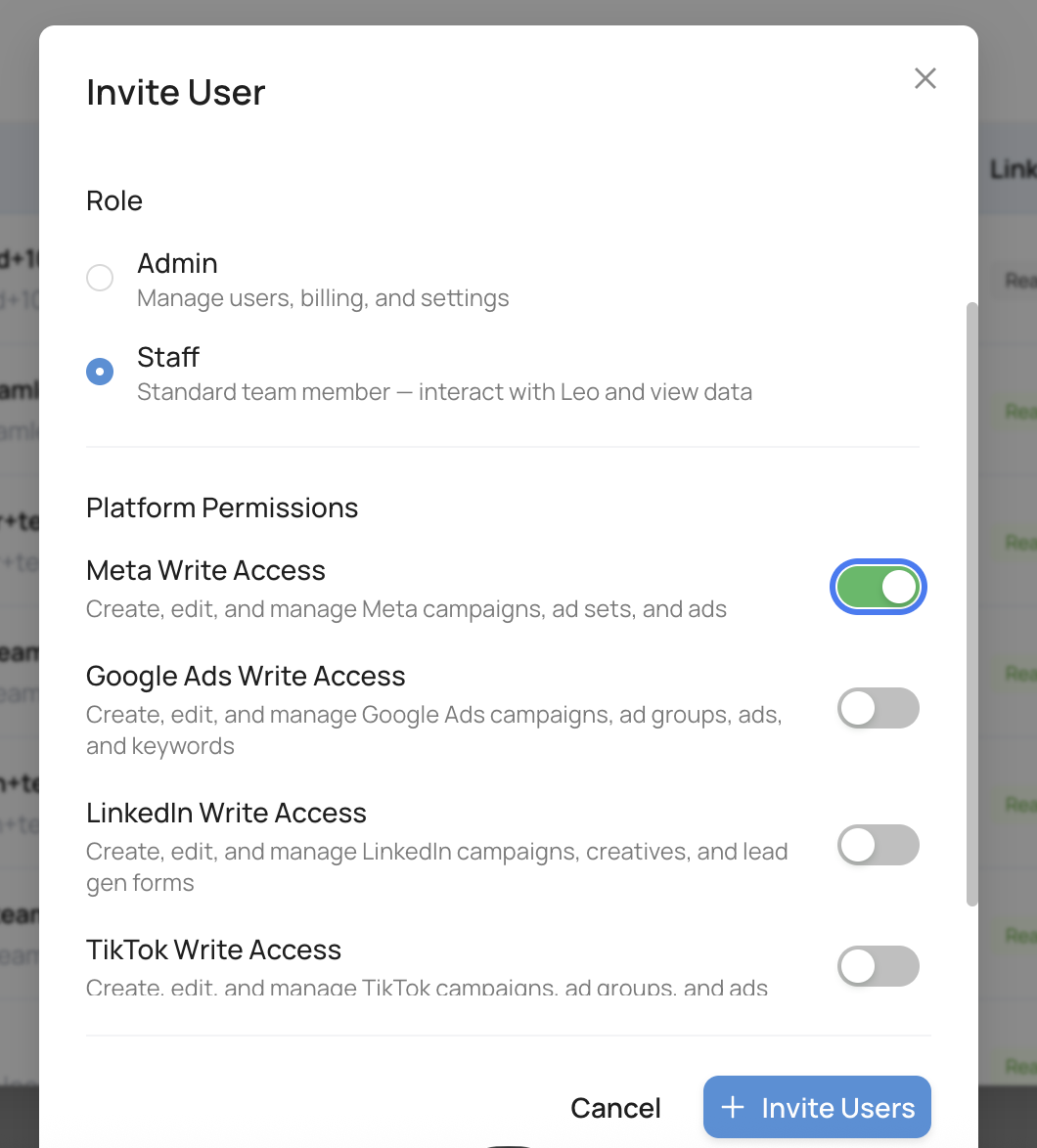
Each platform has its own toggle:
- Meta Write Access — Create, edit, and manage Meta campaigns, ad sets, and ads
- Google Ads Write Access — Create, edit, and manage Google Ads campaigns, ad groups, ads, and keywords
- LinkedIn Write Access — Create, edit, and manage LinkedIn campaigns, creatives, and lead gen forms
- TikTok Write Access — Create, edit, and manage TikTok campaigns, ad groups, and ads
Once you’ve configured everything, click + Invite Users to send the invitation.
Common Setups
Full access for your media buyer: Set them as Staff with Write Access enabled on all platforms they manage. They can create and optimize campaigns through Leo but can’t change workspace settings.
Read-only access for a client or stakeholder: Set them as Staff with all Write Access toggles off. They can log in to see campaign performance and reports but can’t make changes.
Admin for your team lead: Set them as Admin so they can invite other team members, manage billing, and adjust settings as needed.
Tips
Start with Read Only and upgrade. If you’re not sure how much access someone needs, invite them with Read Only permissions. You can always toggle Write Access on later.
Use Staff for most team members. Admin should be reserved for people who actually need to manage the workspace — invite users, change billing, adjust settings. Everyone else works fine as Staff.
Review permissions regularly. As team members change roles or leave, check the Users page to make sure access is up to date. Remove users who no longer need access to keep your workspace secure.