

How to Generate a Performance Report in Leo
Leo generates detailed performance reports that go beyond raw numbers — it tells you what’s working, what’s not, and what to do about it. Instead of exporting CSVs and building spreadsheets, you ask Leo for a report and get a written analysis with actionable recommendations. This guide covers how to request, browse, and read reports.
How to Request a Report
Open the chat panel and ask Leo for a report. You can be broad or specific:
- “Make me a report about my CPA in this campaign”
- “Give me a weekly performance summary”
- “How are my Meta campaigns doing this month?”
- “Show me a full-funnel analysis”
You can also attach a specific campaign to your request. In the chat input, click the + button to attach a campaign, then type your request. This tells Leo exactly which campaign to analyze.
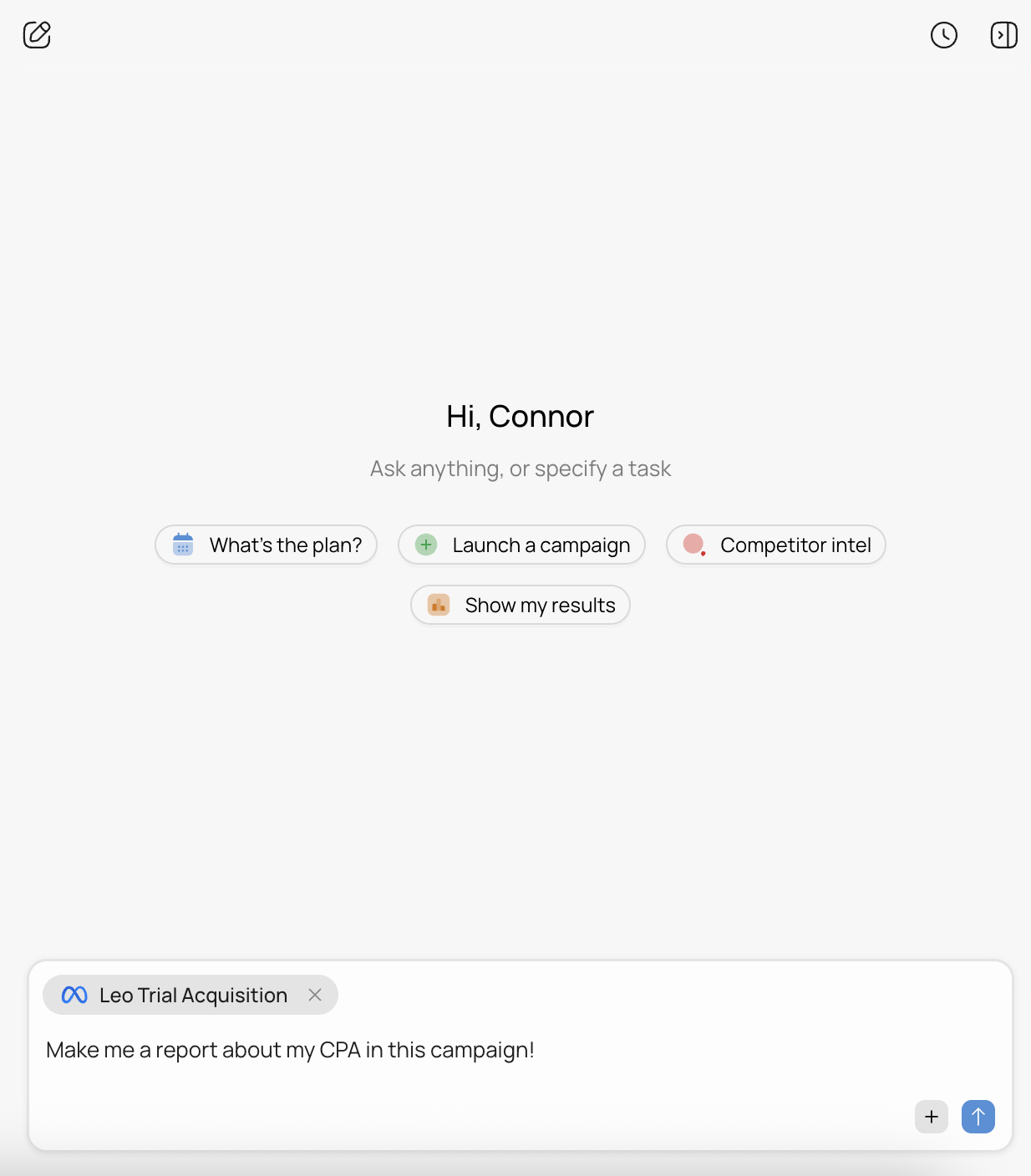
Leo will pull data from your connected platforms, analyze the performance, and generate a full report. This usually takes a minute or two depending on how much data is involved.
Reading a Report
Once generated, your report opens in a new tab in the center panel. A Leo report includes:
- Executive Summary — A written overview of overall performance, key wins, and concerns. Leo highlights the most important takeaways so you don’t have to dig through tables to find them.
- Campaign Performance Table — A breakdown by campaign showing Spend, Impressions, Clicks, CTR, CPC, CPM, and Key Actions. This gives you the numbers at a glance.
- Analysis and Insights — Leo interprets the data and flags specific issues. For example, it might note that cheap clicks aren’t converting to meaningful site engagement, or that a specific campaign is outperforming the rest and deserves more budget.
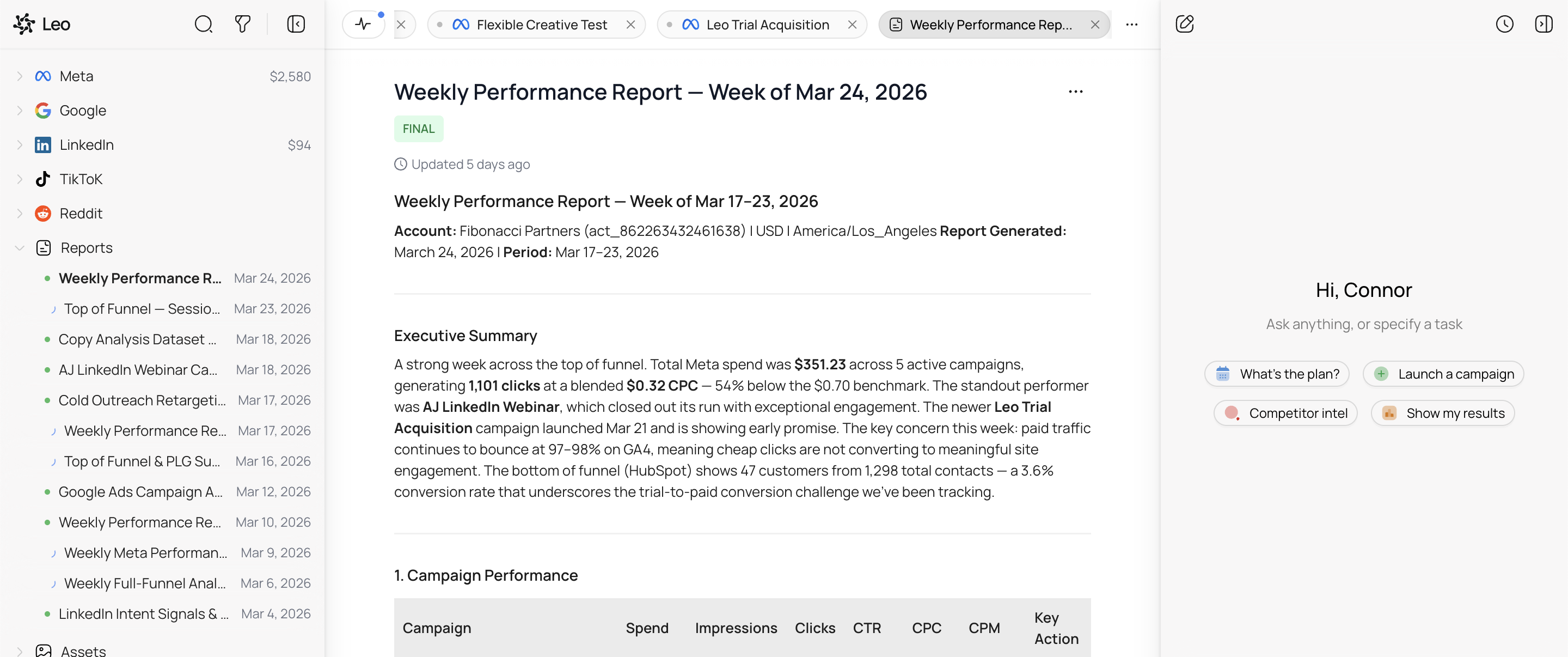
Reports are marked as FINAL once complete. You’ll also see when the report was last updated and what time period it covers.
Browsing Past Reports
All your reports are saved in the Reports section of the left sidebar. You’ll see them listed by name and date — click any report to reopen it.
Leo generates different types of reports depending on what you ask for:
- Weekly Performance Reports — overall account performance for a given week
- Top of Funnel / Session Reports — how your campaigns are driving awareness and traffic
- Copy Analysis — how your ad copy is performing across variations
- Campaign-Specific Reports — deep dives into a single campaign’s performance
- Full-Funnel Analysis — end-to-end view from impression to conversion
- Platform-Specific Reports — Google Ads, Meta, LinkedIn breakdowns
You can also ask Leo to generate reports on a recurring schedule using the Automation settings, so you get a fresh report every week without asking.
What Makes Leo’s Reports Different
Leo doesn’t just show you a dashboard of metrics — it writes an analysis. It reads the data the way a media buyer would and tells you:
- Which campaigns are pulling their weight and which aren’t
- Where your CPA is above or below benchmark
- Whether cheap clicks are actually converting or just inflating numbers
- What structural changes (objective, targeting, creative) could improve results
This means you can share a Leo report with your team or stakeholders and it reads like a briefing, not a spreadsheet.
Tips
Be specific about what you want to learn. “How are my ads doing?” works, but “which ad creatives have the lowest cost per conversion this month?” gives Leo a clear focus and produces a more targeted report.
Attach a campaign for focused reports. Use the + button in chat to attach a specific campaign. This is especially useful when you want a deep dive rather than an account-wide overview.
Use reports before optimizing. Generate a report first, then ask Leo to optimize based on what it found. The report gives you context so you can make more informed decisions about which recommendations to approve.
Check the Reports sidebar regularly. If you’ve set up automated reports, they’ll appear here as they’re generated. It’s a good habit to review the latest report at the start of your week.