

How to View and Browse Your Campaigns Across Platforms in Leo
One of Leo’s biggest advantages is seeing all your campaigns across every platform in a single view. Instead of logging into Meta Ads Manager, then Google Ads, then TikTok — you browse everything from Leo’s sidebar. This guide covers how to navigate your campaigns, filter them, and drill into performance details.
The Sidebar Tree
The left sidebar organizes all your campaigns in a tree structure, grouped by platform. You’ll see each connected platform listed — Meta, Google, TikTok, LinkedIn, Reddit — with campaigns nested underneath.
Click the arrow next to any platform to expand it and see your campaigns. Each campaign can be expanded further to show its ad sets (or ad groups), and each ad set expands to show individual ads. It’s a drill-down: Platform → Campaign → Ad Set → Ad.
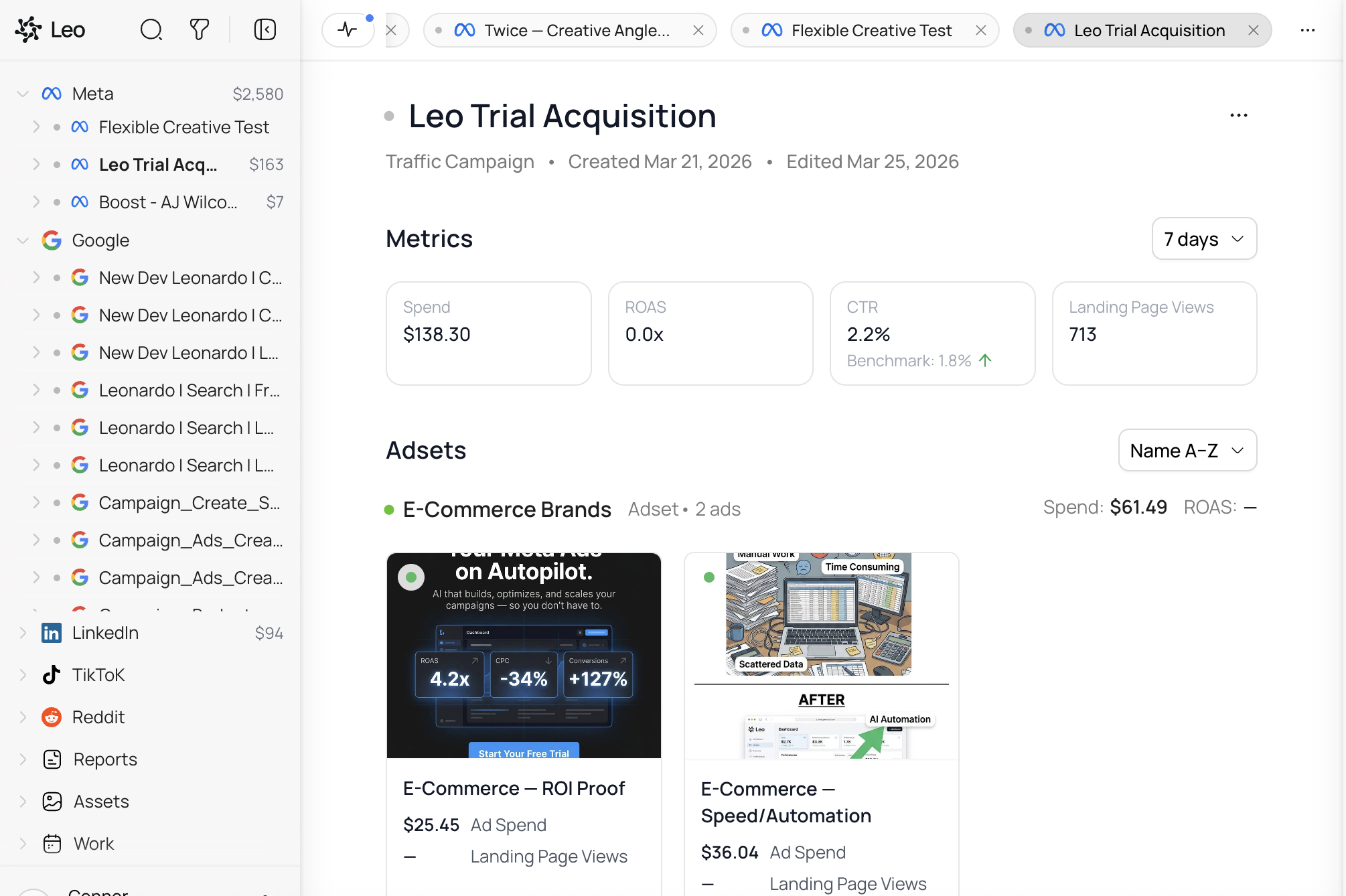
You’ll also see spend figures next to each campaign, so you can quickly spot where your budget is going without clicking into anything.
Filtering and Sorting
Click the filter icon in the top navigation bar to open the filter panel. You can narrow down what you see in the sidebar by:
- Data Age — Show metrics for the last 7 days, 30 days, 6 months, all time, or a custom date range
- Status — Filter by All, Live, or Not Live campaigns
- Media Type — Show All, Video only, or Static only
- Sort Order — Newest, Oldest, Ad Spend (High to Low), Ad Spend (Low to High), or Alphabetical
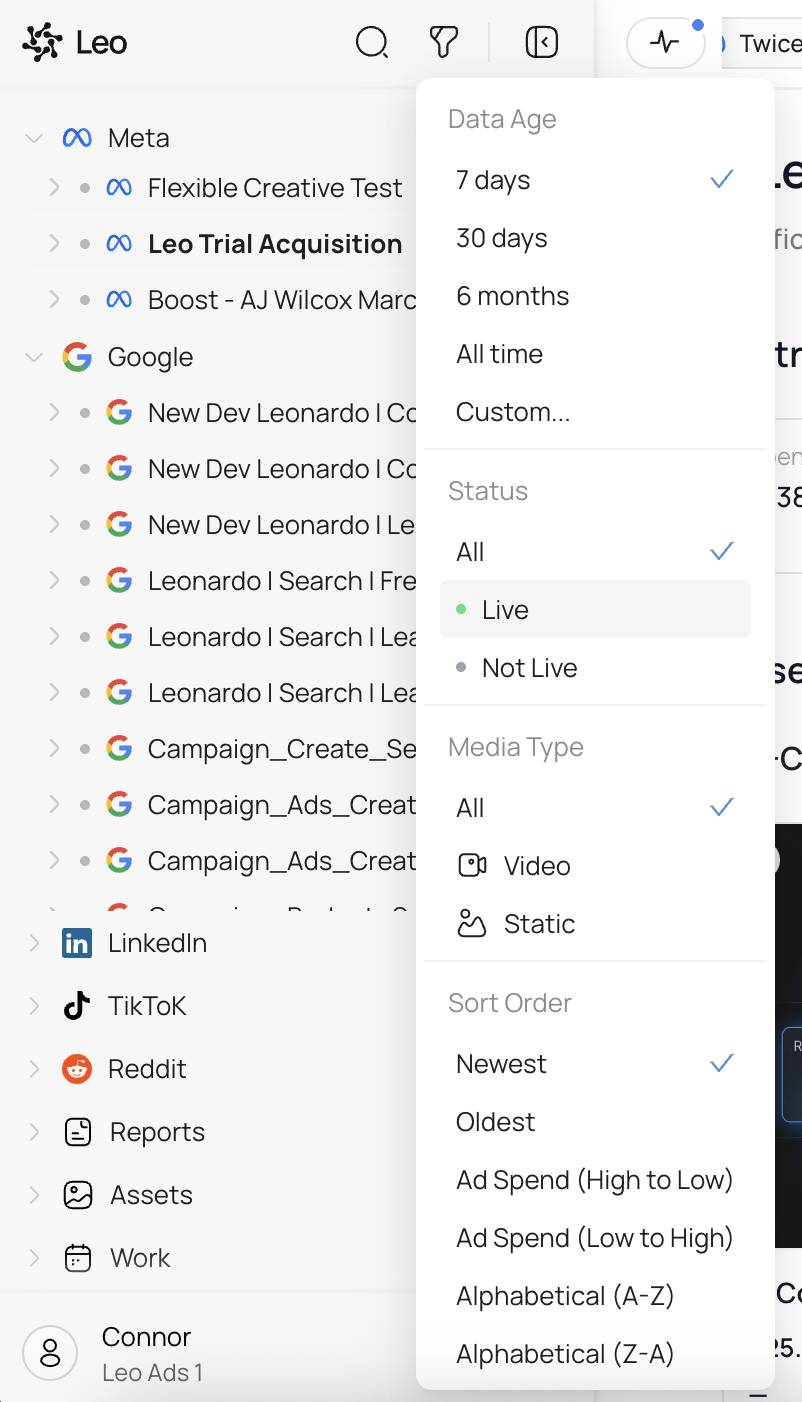
These filters apply to the entire sidebar, so you can quickly answer questions like “which of my live video campaigns spent the most in the last 30 days?” without digging through each platform individually.
Campaign Detail View
Click any campaign in the sidebar to open its detail view in the center panel. You’ll see:
- Campaign name, type, and status — whether it’s active, paused, or in draft
- Dates — when the campaign was created and last modified
- Key metrics — Spend, ROAS, CTR, and Landing Page Views (or other conversion metrics depending on the campaign objective)
- Benchmark comparisons — Leo shows how your metrics compare to benchmarks so you can spot underperformance at a glance
Below the metrics, you’ll see the campaign’s Ad Sets (or Ad Groups for Google), each showing their own spend and ROAS. Expand an ad set to see the individual ads with creative previews, ad copy, and per-ad performance data.
Opening Multiple Campaigns
Leo uses a tabbed interface — you can open multiple campaigns at once and switch between them using the tabs at the top of the center panel. This makes it easy to compare performance across campaigns or platforms side by side.
Using Search
If you have a lot of campaigns, use the search icon in the top navigation bar to find a specific campaign, ad set, or ad by name. This is faster than scrolling through the sidebar tree when you know what you’re looking for.
Tips
Check the data age setting first. If your numbers look off, make sure you’re looking at the right time window. The default is 7 days — switch to 30 days or all time for a broader picture.
Use spend sorting to find waste. Sort by Ad Spend (High to Low) and filter to Live campaigns to quickly see where most of your budget is going. If a high-spend campaign has low ROAS, that’s a good candidate to ask Leo to optimize.
Click into individual ads. The campaign-level view gives you the overview, but the real insights are often at the ad level. Click into specific ads to see which creatives are performing and which aren’t.